Copyright © 2005 Bitcartel Software
Permission to use, copy and distribute this book for any purpose without fee is hereby granted, provided that the above copyright notice and this paragraph appear in all copies, and this book is kept in its entirety and is not modified.
2005
Table of Contents
List of Figures
- 2.1. Mounted Disk Image Window In Finder
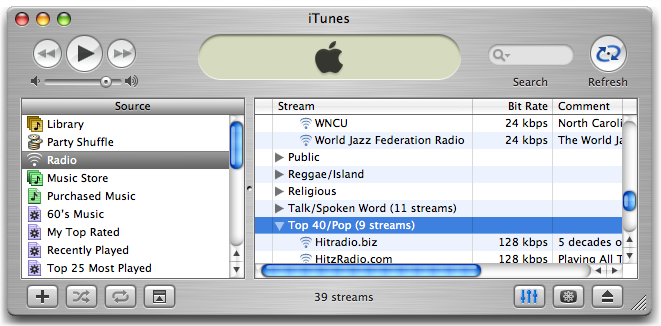
- 4.1. iTunes Radio Tuner
- 4.2. Drag and drop from Shoutcast.com
- 4.3. Drag and drop from Live365, via iTunes
- 5.1. The Table Of Radio Streams
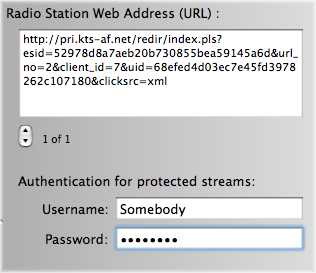
- 5.2. Web Address Drawer
- 5.3. Download History
- 6.1. Recording Style Drawer
- 6.2. Recording Style Menus
- 6.3. Save, Rename And Delete Recording Styles
- 6.4. Splitting Options
- 6.5. Tagging Options
- 6.6. iTunes Playlist Options
- 6.7. Track Information Options
- 6.8. Language Encoding Menu
- 6.9. Korean Language Song Title
- 7.1. The Scheduler
- 8.1. Downloading Options
- 8.2. Listening To Streams
- 8.3. Connection Options
- 8.4. Miscellaneour Options
RadioLover is an Internet radio recorder for Mac OS X.
With RadioLover you can record your favourite MP3 radio streams as separate songs. You can record radio shows and listen to them on your iPod or other MP3 device. If you like using iTunes, you will love RadioLover!
With RadioLover you can:
- Record MP3 Internet Streams
Thousands of MP3 radio stations are supported including those found in the iTunes Radio Tuner, on Shoutcast.com and other web-sites. The audio formats which can be recorded are Shoutcast-compatible radio streams, MP3, M3U and EXTM3U playlists.
- Split Radio Into Songs
Radio streams which broadcast track information can usually be split into individual MP3 songs, with automatic tagging to fill in information such as song name, artist, album.
- Schedule Recordings
Built-in scheduler allows you to schedule recordings of your favourite radio shows
- Record Multiple Radio Stations
You can record dozens of high-quality radio streams at the same time. The more bandwidth you have, the more you can record. Broadband connection recommended!
- Import Streams
Import the stations listed in the iTunes Radio Tuner, or drag and drop links to MP3 streams from your browser.
- Advanced Splitting Options
Set up your own recording styles to split and organise recordings by song, time, or size
- Works With iTunes
Makes use of iTunes to preview and listen to streams, and recorded songs can be automatically added to iTunes playlists
Users can record Internet radio so that they can listen to broadcasts when it is convenient for them. This is called time-shifting. It's the same principle as recording television broadcasts with a video recorder. Time-shifting with TiVos, VCRS and software such as RadioLover are giving users the freedom to listen or watch whatever they want, whenever they want. Now there's no excuse not to walk the dog!
“This is the best program I've found for my Mac; since leaving Southern California for New York city I have had to do without a music program on the LA public radio station. Now I can capture it daily and play it on the iPod. Amazing.” | ||
| --Dell Bleekman, April 2003 | ||
Ever listened to a song on the radio, wanted to buy it, but not know the name of it? Many Internet radio stations send track and playlist information along with the broadcast, making it possible for RadioLover to divide recordings into songs. This makes it easy for users to learn about new music and find tracks in the iTunes music store or local record stores.
“Click on one of hundreds of DJ-free, 24-hour online music stations of a particular, favorite genre, leave [it] running for a few hours (or all day) and come back later -- and, boom, waiting for you is a couple gigs of fresh new music, hours and hours worth, all organized by song name and group, ready to burn right to CD. Amazing.” | ||
| --San Francisco Chronicle, SFGate Review, January 2003 | ||
There are many audio formats in use today on the Internet. RadioLover supports one of the most popular audio formats called MP3.
RadioLover does not support other audio formats such as RealAudio or WindowsMedia. If you want to record these and other streams, you can do so with our other software iRecordMusic. It's free to download and test, so give it a spin!
RadioLover can be downloaded from the Bitcartel web-site.
RadioLover is distributed as a disk image. A disk image is a standard Mac OS X file.
RadioLover will run on any Apple Mac with:
Mac OS X 10.2 - 10.4
iTunes 4
Users running older versions of Mac OS X, such as OSX 10.1.5 (Puma) users should use StreamRipperX 1 .05
![[Note]](images/note.png) | Note |
|---|---|
| Before releasing RadioLover, the author released StreamRipperX. RadioLover is a complete re-write from the ground up, designed for Mac OS X, with significant improvements. Note that RadioLover does not use any code from StreamRipperX, which was based on top of an open-source Unix tool called StreamRipper. | |
Note that there are no versions of RadioLover planned for either MacOS 9, or for the Windows platform.
From the download page, click the download link to download the latest version of RadioLo ver. The file you are downloading is a standard Mac OS X disk image. With Safari, the disk image should automatically mount and open a window in Finder.
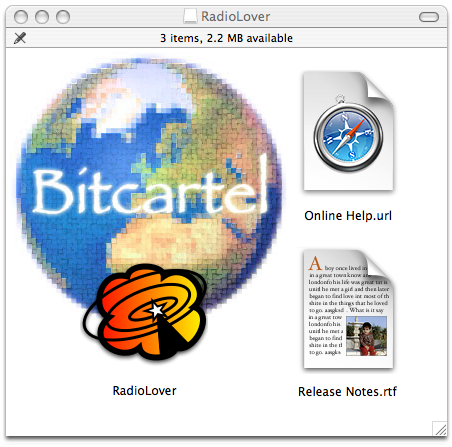
If this does not happen, use the Finder to drag the downloaded file to Disk Copy, located in the Utilities folder of the Applications folder.
Once the disk image has mounted, a Finder window will appear that contains an icon for the RadioLover application. Simply drag this icon to your Applications folder, or wherever you like to keep your software. This copies the application from the temporary disk image onto your hard disk. The software is now installed and you can now eject the mounted RadioLover volume.
If you are upgrading from an earlier version, first remove the old version of the software from your system by deleting it, or moving it to the Trash, and then follow the installation instructions as above. It is not recommended that you simply drag'n'drop a new version over the old version.
If you would like to remove RadioLover completely from your system, remove the main application file, and also delete the following files depending on your version.
1.3 and up
HOME/Library/Application Support/RadioLover
HOME/Library/Preferences/com.bitcartel.radiolover.plist
Earlier than 1.3
HOME/Library/Preferences/RadioLover Preferences
HOME/Library/Preferences/org.bitcartel.radiolover.plist
Table of Contents
This tutorial will show you how to import iTunes radio stations into RadioLover and then record them. You will also learn the basic controls of RadioLover.
In iTunes, Open the Radio Tuner, and click on a genre title. iTunes will take a few seconds to retrieve a list of radio stations.
In RadioLover, you will find a menu located on the toolbar. Select the menu option Tune Into Radio Stations -> Stations Currently On Display In iTunes. This will import the radio stations in iTunes into RadioLover.

After 1-2 seconds, you will see a folder labelled "iTunes Radio Tuner..." in the main window of RadioLover. Open the folder by clicking on the disclosure triangle on the left. This will reveal the radio stations.


Select one of the radio stations and click the record button. RadioLover will try and connect to the radio station and start recording.
In the bottom right hand side of the window, you can see what RadioLover is doing. RadioLover will try to connect to the radio station, and display some information about its status. If successful, you will see the name of the current song being broadcast.

In the main table, you will see information change. The "Name" column represents the name of the radio station. The "Bitrate" column represents the amount of bandwidth the radio station consumes for its stream. Generally, the more bandwidth that can be used for transmitted streaming audio, the better quality of the audio. 128kbps is good quality. There is also a column in the table marked "][" (looks like a Dolby sign) indicates whether or not the radio station is broadcasting in stereo.

Click the listen button. RadioLover will tell iTunes to connect to RadioLover to listen to the stream you are recording. If you prefer using Audion, you can select Audio as the default player in the Preferences options.
Sit back and enjoy the music for a few minutes.
Click the show music button display your recordings in Finder. By default, RadioLover will save recordings in a folder named after the radio station, in your Music folder. You will also see a folder called incomplete. This is where RadioLover does a lot of its work. When recordings are finished, it moves them out of this work area.
![[Tip]](images/tip.png)
Tip By default, completed recordings are added to an iTunes playlist called 'RadioLover. This is because streams are assigned recording styles, and the Standard recording style is set to do this. You can change this easily by creating your own recording style. Open a recording in Finder and listen to it in iTunes.
That's it, you've finished the quick start guide to RadioLover - it really is that easy! So far we've only touched upon a few of the basic features, so read on to learn much more.
Table of Contents
This chapter will show you how to find and keep your favourite radio stations in RadioLover.
Internet radio stations are found with an Internet web address, commonly called a URL. This web address points to an audio stream which you can listen to with iTunes, and record with RadioLover. iTunes has a built-in radio tuner which lists many radio stations, but there are many more out there listed on websites. We'll list some sites later for you.
| Tip |
|---|---|
| A web address for a radio station may change from week to week. One rule of thumb is that commercial radio stations to keep the same web address. In contrast, smaller Internet only stations, tend to change their web address frequently. | |
Open iTunes Radio Tuner and click on the genres to display some radio stations.
Figure 4.1. iTunes Radio Tuner
Open radio stations in iTunes by clicking the music genre's disclosure triangle
To transfer these radio stations to RadioLover, select the import menu on the toolbar. Selecting this option, you will import every radio station that is currently on display in the iTunes Radio Tuner. This takes a few seconds. Note that it is currently not possible to organise the imported stations by genre.
Select a radio stream in iTunes and drag it onto the stream table in RadioLover. At the moment, you can only drag one stream at a time.
You can drag'n'drop web links to radio stations, straight into RadioLover. Valid web links typically end with the extension .pls or .m3u.
Links ending in .pls point to playlists, which typically contain a list of web addresses - which change often - for the radio station. Storing the .pls web address in RadioLover means that each time you record, RadioLover loads the playlist and finds out the current web address for the radio station. If you were to store the actual IP address of a radio station stream, you would find that it would be out of date very soon.
Links ending in .m3u typically point to a real playlist which contains the actual web address of a list of MP3 songs, and is often used as a playlist for an album.
Below are examples of drag'n'drop from two popular web-sites.
Shoutcast.com is a great site for a lot of high quality streams. Some of the streams are also found in the iTunes radio tuner.

Live365 offers free and fee-paying members access to a wide variety of streams. You can even sign up with Live365 to run your radio station.
Figure 4.3. Drag and drop from Live365, via iTunes
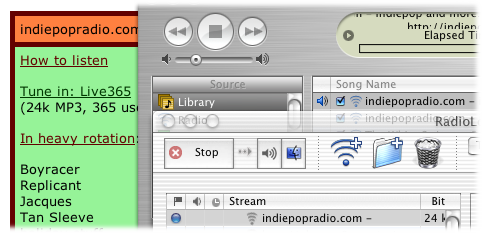
Use iTunes to get the web address before dragging it into RadioLover
When you click on a Live365 station on a web page, or from the Live365 site, iTunes should automatically start playing the radio station. Locate the radio station entry in iTunes Library playlist and drag it into RadioLover.
| Note |
|---|---|
| It is not possible to split Live365 streams by song as Live365 keeps the track information private for their own web interface, and their own player Radio365. Even when listening with iTunes, the iTunes display window will show the radio station name, and web address, but not the track information. | |
If your web browser has not been set up to automatically launch streams, often when you click on a link to a radio station, a file is saved to your disk. These files will be named after the link, and will end with .pls or .m3u. You can drag .pls files straight into RadioLover. Dragging .m3u files will have no effect as they do not contain web addresses to radio stations, but are a list of MP3 web addresses.
From the toolbar, you can manually add radio streams, create folders to organise them, and delete streams you don't like. Currently there is no undo feature. Each stream you record can be recorded differently, based on a recording style which you can customise. If you delete a stream, the recording style is still preserved.
Table of Contents
This chapter will show you how to control RadioLover.
The stream table lets you get an overview of the current state of RadioLover - whether there are any active or pending recordings, and which stream you are listening to.

Things To Look Out For
- Yellow Dot
Resolving the web address for the stream
- Blue Dot
Connecting or recording radio stream
- Speaker Icon
Listening to the radio stream
- Clock Face Icon
Scheduled recording has been set up for this radio stream
- Red Dot
Scheduled recording is active and recording
- ][
Radio stream is in stereo, else mono.
Click the column headers to sort the column alphanumerically. You can sort streams by name, comment or bitrate.

The toolbar allows you to control recording, organise your favourite radio station, and set up scheduled recordings.
We will now describe the toolbar from left to right. The toolbar controls can be divided into three main groups, depending on their use. These groups are recording controls, stream management and stream recording options.
Select one or more streams in the table. Click the button to start recording. Once you start recording, the button's icon should change to "Stop". Pressing 'stop' will tell RadioLover to stop the recording.
Don't want to record the current track? Click this button to skip recording the current song, and wait for the next song before recording again. Radio streams based on M3U playlist format (such as the now defunct MP3.com), allow you to skip straight to the next song, without having to wait for the current song to finish. That's because an M3U playlist is just a list of MP3 song files, whereas with real streaming audio broadcasts, you can't jump ahead.
Select a radio stream and click "Listen". If you are not currently recording from the stream, RadioLover will preview the radio stream with iTunes. It's the same as if you opened the stream directly in iTunes. If you are actually recording the radio stream, clicking "Listen" will allow you to listen to what you are recording, but RadioLover will relay the radio stream to iTunes on your computer.
When a radio stream is being recorded, you can select the "Show Music" button to tell Finder to display where your recordings are. You will see a folder open, named after the radio stream, in your download path (by default, this is your "Music" folder). Note that if you don't see any files, or some are missing, it could be due to: files being ignored because they are too small (a preference option) files are in the incomplete folder files have been added to an iTunes playlist, and the option to delete files after adding to iTunes playlists has been enabled
Change the web address for the stream. At the moment, you can only enter one web address.
However, when a stream is drag'n'dropped into RadioLover, you will sometimes see that a stream may have multiple web addresses.
If the stream is password protected, you can enter the details here. Most stream broadcasting sites make use of an authentication system called 'Basic Authentication' which does not encrypt the password, and sends it 'in the clear' across the network.
Displays the download history for a selected stream. Recordings which are duplicate, incomplete or ignored are marked as such. The download history is used to work out whether a recording is a duplicate or not. The history can be cleared.

Import radio stations from external sources. Currently only iTunes is supported and it is discussed in detail here.
Table of Contents
This chapter will show you how to set up your own custom recording styles and assign them to radio stations.
Recording styles were introduced in RadioLover v1.3. A recording style determines how a stream will be recorded, from how it will be split up, to whether or not recordings are added to iTunes. You can assign recording styles to streams, and if you remove the stream, the recording style can still be used again.
Select a stream in the table and click the Recording Style. A drawer will open, where you can select the recording style from the pull-down menu, and click to edit a recording style. By default, the standard recording style is selected.
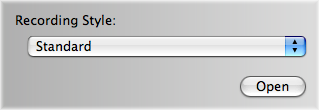
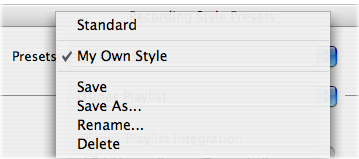
On opening the recording style editor, you will see a window with pull-down menus. These menus allow you to save changes, delete and rename existing recording styles.
Figure 6.2. Recording Style Menus

Current selected recording style, and current set of options on display
Note that it is not possible to change the default Standard recording style. Any changes should be saved with the Save As menu option.
This section will explain options to split streams by song, by time, or by size.
Figure 6.4. Splitting Options

Splitting options let you split by song name, or by time or size of recording.
Before you start recording, you can select some options to ensure your recordings turn out exactly the way you want them. Want to break up long DJ mixes into 3 minute segments for easy iPod navigation? Or record 74 minute segments for easy burning to CD? Read on!
Most radio streams send track (or song) information with their broadcasts. This makes it possible for RadioLover to try and judge the point in time when one song ends, and another begins.
RadioLover will automatically look for the track data, and split recordings into individual tracks.
Some radio streams don't send track data at exactly the right time. Some song recordings may be split too late e.g. at the start of a song, so you have a few seconds of the previous song. For each RadioStream, you can tell RadioLover to split songs a few seconds earlier than normal, or later than normal.
If radio streams don't send any track information, it is not possible to record by song or track. In this case, RadioLover shifts to manual control:
record one big file
manually split the recording by size e.g. 10 MB
manually split the recording by time e.g. 5 mins
It is sometimes useful to select the option "Ignore Track Information" to tell RadioLover not to automatically split a recording by song or track. Instead, the manul recording options are used. For example, if you are recording a 30 minute radio show, and you don't want the recording to be split into individual songs and jingles.
Split by time records based on the time limit you set. Note that the length of time is in calculated in real-time. It is not based on how much data should have been sent in a period of time, as often data is lost due to network congestion.
This section explains how to use tagging options to alter the information recorded with your MP3s.
Figure 6.5. Tagging Options

Tagging options affect how information such as artist, album, song name and genre are recorded in your MP3s.
Tagging helps you to organise and identify the recordings you make.
You can tell RadioLover to organise recordings by adding a sequence number to the start of filenames.
You can use these sequence numbers in the MP3 tags as the "track number". This is great for listening to the recording in the exact order as broadcast. Very useful for DJ mixes.
Sometimes you will see that there are missing track numbers in a sequence. This can happen for a number of reasons. The recording may have been very small, say a jingle, and may have been removed based on your settings in Preferences. Or the network connection may have been done, or the station disconnected you, resulting in a missing file or partial file.
If a radio stream only sends "Artist - Title" information, you can append an album name by using the radio station name instead.
The genre of recordings can be set to match the genre of the stream being recorded. You can change this to use a custom genre name if you wish.
This section shows you how to organise RadioLover recordings in iTunes.
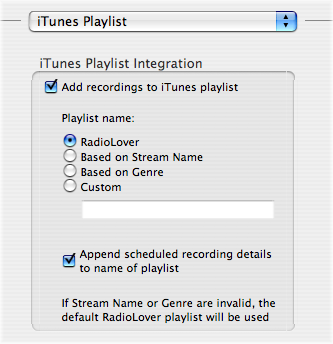
If you decided to add recordings to iTunes, you should check to see if iTunes is currently set to copy files into its own music library when songs are added. You can check this in the iTunes Preferences. If so, you might want to select an option in RadioLover's Preferences to delete recordings once they have been added to iTunes, thus saving disk space.
You can select the default playlist RadioLover, or you can select one based on the stream name. Note that the stream name can be edited in the main table. Alternatively, if in your preferences you have set the stream name to be set based on the Radio Station's server, the playlist name will be based on this information. You can also choose to have a playlist named by genre. Genre information is sent by the radiostation, so a playlist might be named RadioLover - Jazz. Finally, you can enter your own playlist name.
If you use the scheduler, you might want to organise recordings by the date and time of the recording. So if you record from a stream manually and via the scheduler, you can distinguish the recordings based on the playlist name.
This section shows you how to tell RadioLover to interpret track information sent by a radio station.
Figure 6.7. Track Information Options

RadioLover has many options to customise track information interpretation.
A common pattern for MP3 streams is "Artist - Title". If the radio stream broadcasts in a different pattern, you can select another one from the pull-down menu.
Most information is separated by a separator character such as a hypen '-', but sometimes you might need to change this a comma or an underscore.
For radio stations that send song information in a different language encoding, you can select the language type from the pull-down menu. Changes take effect the next time you start recording.

To verify the language encoding is correct, check the song title in the bottom right of the main window. RadioLover uses ID3v2 tags to store this information in the recording file, and they will be visible in iTunes and an iPods.

Sometimes it is necessary to clean or ignore certain track information sent by radio stations. Due to the limited way in which radio stations can send track information, some radio stations send advertisements and other information when they should be sending track information. This causes problems for stream recorders which interpret this information as the signal for a new track.
Cleaning track information is useful if a radio station is sending extra information. For example, one radio station sends information such as "Coldplay - The Scientist (see our website for the last ten songs played)". You can add the text "(see our website for the last ten songs played)" to the Clean list and it will be removed, before RadioLover extracts the artist and title information.
Ignoring track information is useful if a radio station likes to broadcast the next song in a playlist. They might send information such as "Next Track: Blah Blah Blah". Simply add the phrase "Next Track:" to the Ignore list, and the track information will be discarded.
Table of Contents
This chapter will show you how to set up your own recording schedules.
There's no need to stay up all night to listen to broadcasts from the other side of the world. RadioLover's built-in scheduler lets you schedule recordings so you never miss your favourite radio show. Important: You need to keep RadioLover running if you have scheduled a recording - don't quit the application! (We hope to address this issue in the future and enable RadioLover to wake up a computer from deep sleep). Using the scheduler, you can set up a recording schedule, similar to that of a VCR. To access the scheduler, select a radio stream and click the schedule icon in the toolbar. A drawer will open with the scheduling options.
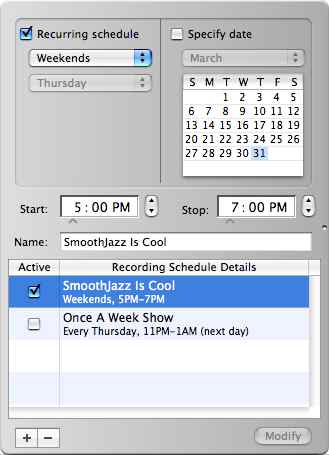
Decide if the show is a one-off, or a recurring programme. Enter the start and stop time of the show. Times are entered in the 12 hr clock format, and you can toggle the AM/PM indicator. Also enter a name for the show. The name can be used as an iTunes playlist name, where recordings are added. Read the section on Recording Styles to find out more about this.
When done, click the add button. Your schedule will be active. You can disable a schedule by clicking the checkbox.
To modify a schedule, select the schedule in the table, make some changes and then click the modify button which is enabled.
If a schedule is active, you will see a clock icon appear next to the radio stream. When the timer kicks off your recording, the clock will change to a red icon (similar to a VCR)
If the recording is interrupted, such as by a change of network location, the application will try to restart the recording every few seconds. If you quit the application, the next time RadioLover is launched, the scheduled recording will continue if necessary.
To stop a scheduled recording from starting, either disable it by clicking the active checkbox, or remove the entry from the list of scheduled recordings. Clicking the "Stop" button on the toolbar will not work - this is in case you click it by accident.
If you need to, you can also modify existing scheduled recordings.
Table of Contents
This chapter will explain the preferences options.

By default, recordings are saved in a user's home directory, under the "Music" folder. Under this folder, recording are organised by radio station name. There will be folders with the name "incomplete", which are working folders, and may contain incomplete recordings. You can delete the contents of this working folder.
![[Caution]](images/caution.png) | Caution |
|---|---|
| Do not save recordings into the iTunes Music Library folder. This folder is for the use of iTunes only, and if recordings are saved there, the behaviour of recordings in iTunes is unpredictable. | |
You can ignore duplicate recordings if you wish. Duplicate recordings are based on whether the track information which was sent by the radio station already exists in the download history.
You can clean up your download directory by ignoring small files - often a result of radio adverts and jingles, or the last few seconds of a song.
Disk safetly lets you stops recording if your download folder is running out of space. The limit is set to 100MB, and is recommended if you are saving to your boot volume (the disk which OSX is on). As reported on MacFixIt, and from personal experience, if your boot volume is running low on disk space many applications such as Mail and Safari can crash, and corrupt their respective user preference files.
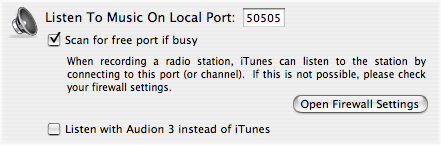
When recording a radio stream, RadioLover can re-broadcast the radio stream on a local port on your computer. A port is identified by its number. Think of a television channel. This is how iTunes listens to a stream which RadioLover is recording.
Note that the recent release of iTunes 4.6 is exhibiting some strange behaviour when connecting to streams. If a stream has not connected properly in RadioLover, it is advised to not try to listen to the stream. We are investigating this issue.
If you prefer to listen with Audion 3, you can select this option and then Audion will be used instead of iTunes for listening to streams.
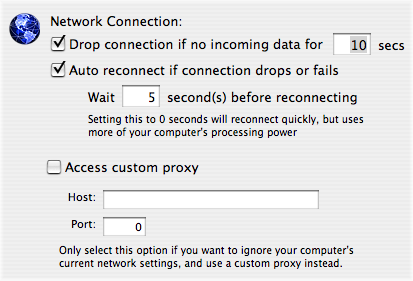
You can select the number of seconds to wait before disconnecting a stream if there is no incoming data. This could be due to your network connection being down, or network congestion on the Internet.
You can choose to auto-reconnect if a connection is dropped, or the connection cannot be established in the first place, or if some error halts recording midway through a broadcast. You can select the number of seconds before re-connecting. The lower the number, the more aggressive the policy, and the more background processing. Setting the wait to 0 seconds will re-connect the fastest.
RadioLover normally connects to radio stations based on the Network settings in your system preferences. If you are using a proxy server in your System Preferences, it will also be by RadioLover. However, you can choose to ignore the system setting and use a custom proxy server.

Select the Aqua interface option if you prefer the Aqua interface or if you are using an older Mac, and you want to avoid the CPU overhead of the brushed metal look.
You can turn automatic version checking on or off. We recommend you keep this on so that each time you start RadioLover, you can find out if there are new upgrades available.
This chapter contains answers to frequently asked questions. Please read this page as often your question has already been answered. If you do require technical support, send mail to <support@radiolover.com>.
- 9.1. General Questions
- 9.9.1.1. Can RadioLover split every broadcast of every radio station into individual songs?
- 9.9.1.2. Some radio stations are cross-fading songs and adding jingles between tracks - can RadioLover remove handle this?
- 9.9.1.3. Can RadioLover record audio streams broadcast in the RealAudio or WindowsMedia format?
- 9.9.1.4. How can I transfer recordings to my iPod?
- 9.9.1.5. What does "no track data" mean in the track name?
- 9.9.1.6. Will the same song be downloaded twice?
- 9.2. Troubleshooting
- 9.9.2.1. I have been recording from my favourite radio station without problems for weeks. Today, I cannot even connect.
- 9.9.2.2. I want to split recordings by 3 minutes, yet in Finder and iTunes, the duration of the recordings are shorter by a few seconds. Why?
- 9.9.2.3. I can record a stream, but I can't seem to listen to what I am recording via iTunes.
- 9.9.2.4. RadioLover is displaying track data for the radio station but doesn't seem to be splitting the tracks
- 9.9.2.5. Song titles contain foreign characters and they are not being displayed properly
9.1. General Questions | |
| |
Answers to some general questions | |
| 9.9.1.1. | Can RadioLover split every broadcast of every radio station into individual songs? |
It depends on whether the radio station sends song information in the broadcast. If there is no song information you can still record the radio station and split recordings by time or size, to make it easier to navigate through long recordings. If there is song information, RadioLover can do a good job of splitting a stream whenever there is a new song. | |
| 9.9.1.2. | Some radio stations are cross-fading songs and adding jingles between tracks - can RadioLover remove handle this? |
There is a preference option to ignore recordings of a small size. Many adverts or jingles are a few seconds long and can therefore be filtered out. However, if there is cross-fading between songs, or an announcer speaks between tracks, it is not possible to remove the cross-fade or the voice-over. We do not know of any software which can do this. | |
| 9.9.1.3. | Can RadioLover record audio streams broadcast in the RealAudio or WindowsMedia format? |
RadioLover focuses on splitting and recording MP3 audio streams. To record other audio formats, please use iRecordMusic, also from Bitcartel Software. It is worth checking the radio broadcaster's web-site as many broadcasters have audio streams in a number of audio formats, including MP3. | |
| 9.9.1.4. | How can I transfer recordings to my iPod? |
In iTunes you will see an icon representing your iPod. You can drag'n'drop your music files and playlists onto this icon to transfer recordings. | |
| 9.9.1.5. | What does "no track data" mean in the track name? |
This means that the radio station is not sending any track data. In the radio station's assigned recording style, the manual recording options, such as split by time, or split by size, will take effect. If you select the option to force manual recording, and avoid automatically splitting a stream into songs, the text "no tract data" will also appear. | |
| 9.9.1.6. | Will the same song be downloaded twice? |
In your download folder, under each radio station's folder, there is a folder called "incomplete". RadioLover records streams into this folder and does work in this folder. When a recording has finished, it is moved out of the "incomplete" folder only if a recording of the same name does not already exist. However, if you number tracks, it is possible to record the same song twice as the files will be saved with names like "001 - ABC.mp3" and "067 - ABC.mp3". Also, download folders are named by session time, so it is possible that across multiple recording sessions you download the same track again. We are looking to change this in the future by having options for users to customise in depth, their download, naming and tagging options. As a workaround, you'll find that iTunes is very easy to use to find duplicate files. Simply sort by artist, song or album name, and duplicates will show up. | |
9.2. Troubleshooting | |
| |
| 9.9.2.1. | I have been recording from my favourite radio station without problems for weeks. Today, I cannot even connect. |
Not being able to connect is a symptom of another problem. The radio station may be busy, offline or the web address has changed. To confirm a connection issue, try previewing the stream in iTunes to see if iTunes can connect to the stream. Also, try updating the web address stored in RadioLover by importing the radio stations' details from iTunes or the web again. | |
| 9.9.2.2. | I want to split recordings by 3 minutes, yet in Finder and iTunes, the duration of the recordings are shorter by a few seconds. Why? |
RadioLover splits by actual clock time. If there are network connection problems, such as congestion, and data packets are lost, the recording may be of shorter length than expected. | |
| 9.9.2.3. | I can record a stream, but I can't seem to listen to what I am recording via iTunes. |
The issue is probably firewall related. RadioLover broadcasts - or relays - what it is recording via a port on your computer, and iTunes connects to this port to listen to the broadcast. Your computer's firewall based on your system preferences, or a third party application such as Norton, may be blocking this firewall. Adjust your firewall settings to resolve this issue. You are free to pick any port number you wish in your firewall settings, and you can set this in RadioLovers' Preferences. | |
| 9.9.2.4. | RadioLover is displaying track data for the radio station but doesn't seem to be splitting the tracks |
If you see a track name in the bottom right-hand corner of the main window, observe to see if it changes. You may be in the middle of recording a very long radio show, or DJ mix. Alternatively, the radio station may send some generic track name which never changes to reflect what is actually being broadcast. In this case, it won't be possible to split by song since the tract title never changes. You should assign a custom recording style to the stream to force manual recording, and split by time or size of recording file. | |
| 9.9.2.5. | Song titles contain foreign characters and they are not being displayed properly |
In the recording style for the stream, please select an appropriate language encoding. This should work for most radio stations. Note that the current protocols used for MP3 streaming do not really handle different language encodings well at all. Even iTunes has problems.  Still, in testing, there has been success with Latin based languages for characters with accents and graves, and also some foreign character sets such as Korean. Foreign characters if received properly are also saved correctly in ID3 tags of the MP3 file. | |
1. You should carefully read the following terms and conditions before
   using, installing or distributing this software.  Your use,
   distribution, or installation of this software ("SOFTWARE")
   indicates your acceptance of this Agreement.

2. The author ("AUTHOR") grants you a non-exclusive license to use one
   copy of the SOFTWARE, subject to the terms of this Agreement.  The
   SOFTWARE is licensed, not sold.  All rights not expressly granted
   are reserved by the AUTHOR.

3. You may use the SOFTWARE only for evaluation purposes. If you
   continue to use the SOFTWARE for more than 30 days, you MUST
   purchase a serial number.  Purchase of serial number(s) absolves
   you of this condition for the number of copies specified in your
   receipt.

4. You may install and use the SOFTWARE on any computer used primarily
   by you (for example, work and home computers or desktop and laptop
   computers).  A copy of the SOFTWARE may either be used by a single
   person who uses the software personally on one or more computers,
   or installed on a single workstation used non-simultaneously by
   multiple people, but not both.  This is not a concurrent use
   license.

5. You may make backup copies of the SOFTWARE, provided that you
   retain possession of your originals and your copies.

6. You may distribute copies of the SOFTWARE installer / disk image or
   post them on a public server, provided these are unaltered copies
   of the then latest version of the SOFTWARE installer / disk image
   obtained directly from the AUTHOR.

7. You may transfer all your rights to use the SOFTWARE to another
   person or legal entity provided that you transfer this Agreement,
   any serial number(s), and all copies and versions of the
   SOFTWARE. You must not retain any copies of the SOFTWARE.

8. You may not sell, sublicense, rent, lease, or lend the SOFTWARE.

9. You may not disclose your purchased SOFTWARE serial number(s) to
   anyone other than the AUTHOR.

10. You may not modify, reverse engineer, disassemble, decompile, or
    make any attempt to discover the source code of the SOFTWARE.

11. The AUTHOR warrants that for 30 days after purchase of serial
    number(s), the SOFTWARE will perform in substantial accordance
    with its documentation.

12. THIS SOFTWARE is distributed and provided "AS IS" AND WITH ALL
    FAULTS, AND with no OTHER WARRANTIES AND CONDITIONS of any kind,
    EITHER EXPRESS, IMPLIED OR STATUTORY, INCLUDING BUT NOT LIMITED TO
    ANY (IF ANY) IMPLIED WARRANTIES OR CONDITIONS OF MERCHANTABILITY,
    OF FITNESS FOR A PARTICULAR PURPOSE, OF LACK OF VIRUSES, AND OF
    LACK OF NEGLIGENCE OR LACK OF WORKMANLIKE EFFORT.  ALSO, THERE IS
    NO WARRANTY OR CONDITION OF TITLE, OF QUIET ENJOYMENT, OR OF
    NON-INFRINGEMENT.  You acknowledge that good data processing
    procedure dictates that any program, including the SOFTWARE, must
    be thoroughly tested with non-critical data before there is any
    reliance on it.  THE ENTIRE RISK ARISING OUT OF THE USE OR
    PERFORMANCE OF THE SOFTWARE IS WITH YOU.

13. EXCLUSION OF ALL DAMAGES.  TO THE MAXIMUM EXTENT PERMITTED BY
    APPLICABLE LAW, IN NO EVENT SHALL THE AUTHOR OR ANY SUPPLIER BE
    LIABLE FOR ANY CONSEQUENTIAL, INCIDENTAL, DIRECT, INDIRECT,
    SPECIAL, PUNITIVE, OR OTHER DAMAGES WHATSOEVER (INCLUDING, WITHOUT
    LIMITATION, DAMAGES FOR ANY INJURY TO PERSON OR PROPERTY, DAMAGES
    FOR LOSS OF PROFITS, BUSINESS INTERRUPTION, LOSS OF BUSINESS
    INFORMATION, FOR LOSS OF PRIVACY FOR FAILURE TO MEET ANY DUTY
    INCLUDING OF GOOD FAITH OR OF REASONABLE CARE, FOR NEGLIGENCE, AND
    FOR ANY PECUNIARY OR OTHER LOSS WHATSOEVER) ARISING OUT OF OR IN
    ANY WAY RELATED TO THE USE OF OR INABILITY TO USE THE SOFTWARE,
    WHETHER BASED ON CONTRACT, TORT, NEGLIGENCE, STRICT LIABILITY OR
    OTHERWISE, EVEN IF THE AUTHOR OR ANY SUPPLIER HAS BEEN ADVISED OF
    THE POSSIBILITY OF SUCH DAMAGES, OR FOR ANY OTHER CLAIM BY ANY
    OTHER PARTY.  THIS EXCLUSION OF DAMAGES SHALL BE EFFECTIVE EVEN IF
    ANY REMEDY FAILS OF ITS ESSENTIAL PURPOSE.

14. In addition, in no event does the AUTHOR authorize you or anyone
    else to use the SOFTWARE in applications or systems where the
    SOFTWARE's failure to perform can reasonably be expected to result
    in a significant physical injury, or in loss of life.  Any such
    use is entirely at your own risk, and you agree to hold the AUTHOR
    harmless from any and all claims or losses relating to such
    unauthorized use.

15. Our entire liability and your exclusive remedy for breach of the
    foregoing warranty shall be to return the price you paid for your
    serial number.

16. This agreement takes effect upon your use of the SOFTWARE and
    remains in effect until terminated.  You may terminate this
    agreement by destroying all copies of the SOFTWARE and any serial
    number(s) in your possession.  This license terminates
    automatically if you fail to comply with any term or condition.
    You agree on termination of this license to destroy all copies of
    the SOFTWARE and documentation in your possession.

17. This written license agreement is the exclusive agreement between
    you and the AUTHOR concerning the SOFTWARE and documentation and
    supersedes any prior purchase order, communication, advertising or
    representation concerning the SOFTWARE.

18. This license agreement may be modified only by a writing signed by
    you and the AUTHOR.

19. In the event of litigation between you and the AUTHOR concerning
    the SOFTWARE or documentation, the prevailing party in the
    litigation will be entitled to recover attorney fees and expenses
    from the other party.
Portions of this software may utilize the following copyrighted material, the use of which is hereby acknowledged.
Dustin Mierau ( calendar )
Copyright (c)2001, Blackhole Media, <dustin@blackholemedia.com>
The calendar control is released under a BSD style license.

Copyright (c)2001, Blackhole Media
All rights reserved.
Redistribution and use in source and binary forms, with or without modification,
are permitted provided that the following conditions are met:
* Redistributions of source code must retain the above copyright notice, this list
of conditions and the following disclaimer.
* Redistributions in binary form must reproduce the above copyright notice,
this list of conditions and the following disclaimer in the documentation and/or
other materials provided with the distribution.
* Neither the name of Blackhole Media nor the names of its contributors may be
used to endorse or promote products derived from this software without
specific prior written permission.
THIS SOFTWARE IS PROVIDED BY THE COPYRIGHT HOLDERS AND CONTRIBUTORS
"AS IS" AND ANY EXPRESS OR IMPLIED WARRANTIES, INCLUDING, BUT NOT
LIMITED TO, THE IMPLIED WARRANTIES OF MERCHANTABILITY AND FITNESS FOR
A PARTICULAR PURPOSE ARE DISCLAIMED. IN NO EVENT SHALL THE REGENTS OR
CONTRIBUTORS BE LIABLE FOR ANY DIRECT, INDIRECT, INCIDENTAL, SPECIAL,
EXEMPLARY, OR CONSEQUENTIAL DAMAGES (INCLUDING, BUT NOT LIMITED TO,
PROCUREMENT OF SUBSTITUTE GOODS OR SERVICES; LOSS OF USE, DATA, OR
PROFITS; OR BUSINESS INTERRUPTION) HOWEVER CAUSED AND ON ANY THEORY
OF LIABILITY, WHETHER IN CONTRACT, STRICT LIABILITY, OR TORT (INCLUDING
NEGLIGENCE OR OTHERWISE) ARISING IN ANY WAY OUT OF THE USE OF THIS
SOFTWARE, EVEN IF ADVISED OF THE POSSIBILITY OF SUCH DAMAGE.
---
English non-authoritative interpretation of the license:
This is pretty much the BSD license. This means you can take the source and do
whatever you please with it. While it is not a requirement of the license, we
would appreciate a mention in the credits of your application if you use our
source.
Daniel Stenberg, et al. ( libcurl )
Copyright (c) 1996 - 2003, Daniel Stenberg, <daniel@haxx.se>
The libcurl software is released under a MIT/X derivate license.

COPYRIGHT AND PERMISSION NOTICE
Copyright (c) 1996 - 2003, Daniel Stenberg, <daniel@haxx.se>

All rights reserved.

Permission to use, copy, modify, and distribute this software for any purpose
with or without fee is hereby granted, provided that the above copyright
notice and this permission notice appear in all copies.

THE SOFTWARE IS PROVIDED "AS IS", WITHOUT WARRANTY OF ANY KIND, EXPRESS OR
IMPLIED, INCLUDING BUT NOT LIMITED TO THE WARRANTIES OF MERCHANTABILITY,
FITNESS FOR A PARTICULAR PURPOSE AND NONINFRINGEMENT OF THIRD PARTY RIGHTS. IN
NO EVENT SHALL THE AUTHORS OR COPYRIGHT HOLDERS BE LIABLE FOR ANY CLAIM,
DAMAGES OR OTHER LIABILITY, WHETHER IN AN ACTION OF CONTRACT, TORT OR
OTHERWISE, ARISING FROM, OUT OF OR IN CONNECTION WITH THE SOFTWARE OR THE USE
OR OTHER DEALINGS IN THE SOFTWARE.

Except as contained in this notice, the name of a copyright holder shall not
be used in advertising or otherwise to promote the sale, use or other dealings
in this Software without prior written authorization of the copyright holder.
PCRE LICENCE
------------

PCRE is a library of functions to support regular expressions whose syntax
and semantics are as close as possible to those of the Perl 5 language.

Release 5 of PCRE is distributed under the terms of the "BSD" licence, as
specified below. The documentation for PCRE, supplied in the "doc"
directory, is distributed under the same terms as the software itself.

Written by: Philip Hazel <ph10@cam.ac.uk>

University of Cambridge Computing Service,
Cambridge, England. Phone: +44 1223 334714.

Copyright (c) 1997-2004 University of Cambridge
All rights reserved.

Redistribution and use in source and binary forms, with or without
modification, are permitted provided that the following conditions are met:

    * Redistributions of source code must retain the above copyright notice,
      this list of conditions and the following disclaimer.

    * Redistributions in binary form must reproduce the above copyright
      notice, this list of conditions and the following disclaimer in the
      documentation and/or other materials provided with the distribution.

    * Neither the name of the University of Cambridge nor the names of its
      contributors may be used to endorse or promote products derived from
      this software without specific prior written permission.

THIS SOFTWARE IS PROVIDED BY THE COPYRIGHT HOLDERS AND CONTRIBUTORS "AS IS"
AND ANY EXPRESS OR IMPLIED WARRANTIES, INCLUDING, BUT NOT LIMITED TO, THE
IMPLIED WARRANTIES OF MERCHANTABILITY AND FITNESS FOR A PARTICULAR PURPOSE
ARE DISCLAIMED. IN NO EVENT SHALL THE COPYRIGHT OWNER OR CONTRIBUTORS BE
LIABLE FOR ANY DIRECT, INDIRECT, INCIDENTAL, SPECIAL, EXEMPLARY, OR
CONSEQUENTIAL DAMAGES (INCLUDING, BUT NOT LIMITED TO, PROCUREMENT OF
SUBSTITUTE GOODS OR SERVICES; LOSS OF USE, DATA, OR PROFITS; OR BUSINESS
INTERRUPTION) HOWEVER CAUSED AND ON ANY THEORY OF LIABILITY, WHETHER IN
CONTRACT, STRICT LIABILITY, OR TORT (INCLUDING NEGLIGENCE OR OTHERWISE)
ARISING IN ANY WAY OUT OF THE USE OF THIS SOFTWARE, EVEN IF ADVISED OF THE
POSSIBILITY OF SUCH DAMAGE.